![AccelPay Logo.svg]](https://try.accelpay.io/hubfs/AccelPay%20Logo.svg)
Discount Codes
They can also help track the effectiveness of partnerships, for instance with influencers or certain distribution channels, when each promo code is uniquely identifiable.
To start working with Discount Codes, follow the steps below:
Step 1) Log in to the AccelPay Portal and navigate to the “Discounts” tab in the left hand menu. This lists all of your currently active Discount Codes. Use the toggle in the top left corner to show promo codes that are inactive.
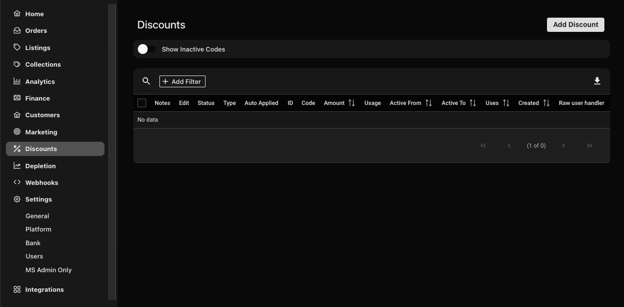
Step 2) Add a New Discount Code
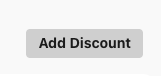
Click on “Add Discount” in the top right corner to add a new Discount code.
Step 3) Set the parameters for the new code
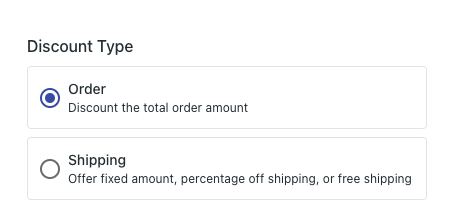
(a) Discount Type. You can choose between the following types of discounts:
- Order: Discount the total checkout value by a fixed dollar amount or by a relative percentage amount.
-
- Shipping: Discount the shipping expense by a fixed dollar amount per order, a percentage off shipping, or offer free shipping
(b) Discount Method.
Automatically applied: This is an optional toggle that determines whether customers need to manually input the discount code at checkout or it should be applied automatically to any orders meeting the conditions.
If the code is not automatically applied, you will enter what you would like the code to be called and what customers need to type in to activate / use the code. If the code is automatically applied, you will not need to enter a discount code.
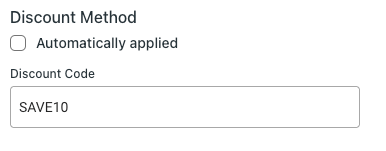
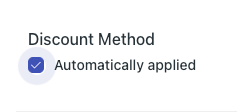
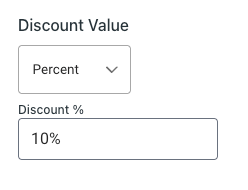
(c) Discount Value. This determines how much the discount code will discount from the order in total.
- Percent: offer a percentage off of the customer's order (ie 10% off)
- Fixed Amount: offer a fixed dollar amount off customers order (ie $10 off)
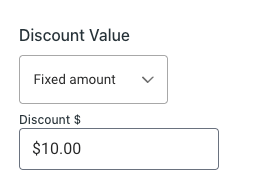
(d) Purchase Requirements.
- Mix/Max purchase amount ($): Here you can determine if a checkout value ($) needs to be reached before the discount code can be applied or if the discount code should become invalid if the cart reaches the maximum checkout value. Minimum and maximum amounts are based off of the subtotal (does not include taxes/shipping).
Example: 10% discount on orders of $150 or more!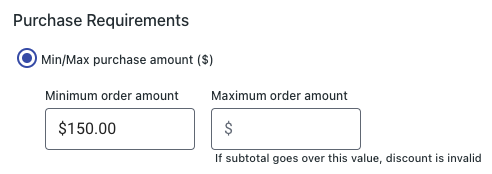
Example: 10% discount on orders up to $300!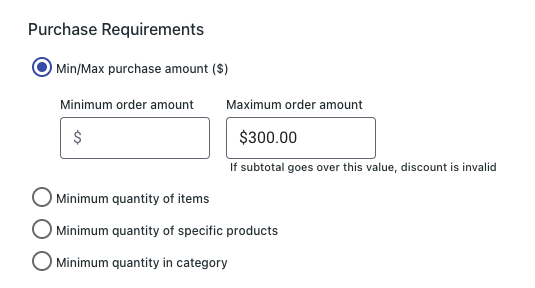
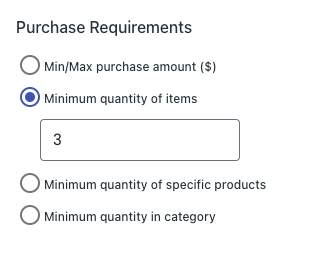
- Minimum Quantity of Items:
In this field you can determine if a minimum number of items must be added to the cart before the discount code can be applied.
Example: 10% discount on orders of 3 bottles or more!
-
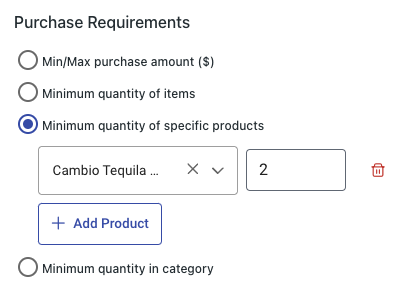
Minimum Quantity of Specific Products. In this field you can determine if a minimum number of any specific item(s) must be added to the cart before the discount code can be applied.
- Select the product name
- Enter the quantity of this item that will need to be added
- Add Rows to add additional Variants - If the minimum quantity is added to the cart with any mix of the listed Variants, the discount code will apply.
Example: 10% discount when you buy 2 or more bottles of Tequila Blanco or Reposado!
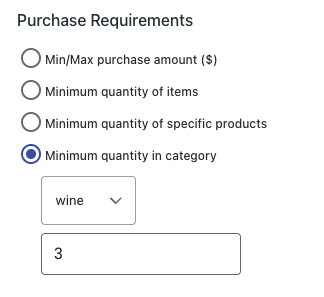
- Minimum Quantity in category:
In this field you can determine if a minimum number of items of a specific type (spirit, wine, beer, merch, non-alcoholic) must be added to the cart before the discount code can be applied.
Example: Free shipping when you buy 3+ bottles of wine!
(e) Usage Limits. You can choose between the following usage types:
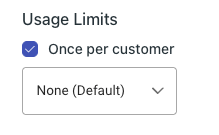
- Once per customer: This code can only be used one time by each customer.
- Number of orders: limit the maximum amount of orders this discount is valid for
Example: Discount is valid for the first 50 customers!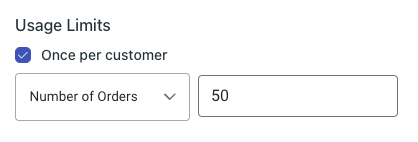
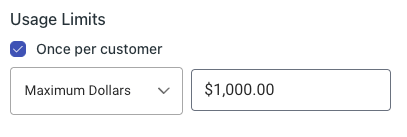
- Maximum Dollars: limit the maximum amount of dollars this discount is valid for. Once this dollar amount is reached, the code will become invalid for customers.
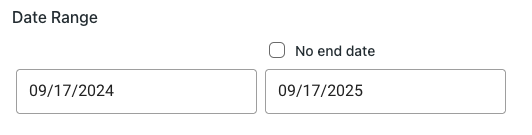
(f) Date Range. Choose the start and end date between which the code should be applicable.