![AccelPay Logo.svg]](https://try.accelpay.io/hubfs/AccelPay%20Logo.svg)
This is for those using our native AccelPay Cart only. If you are using the AccelPay-Shopify-integration you can find information on how to edit your confirmation emails in Shopify in the Shopify Help Center here.
You can edit the order confirmation emails in the AccelPay portal under Settings > General > Edit all settings (top right corner). Find and edit the field
Receipt Email Note; the default setting is "Thank you for your order!"There is no character limit and it takes all kinds of HTML formatting so you can truly make it your own!
Here is an example of what the original confirmation email looks like before any customizations:
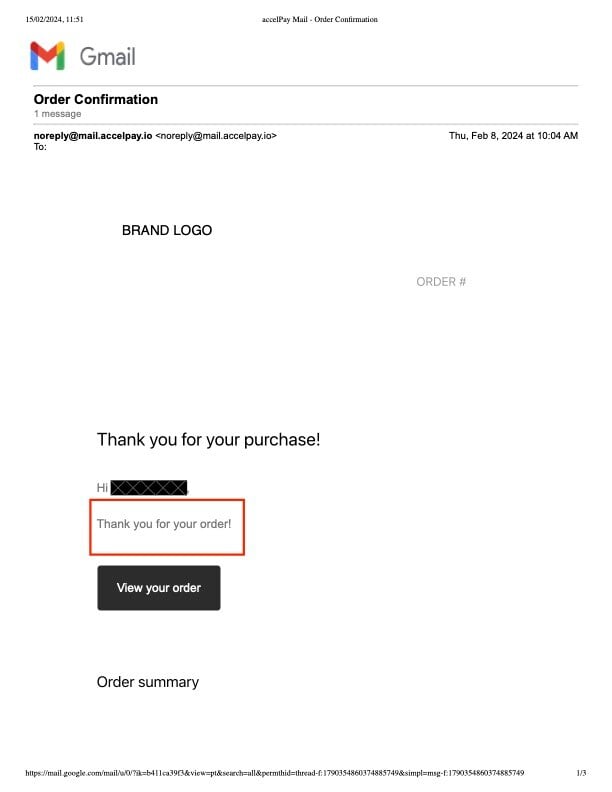
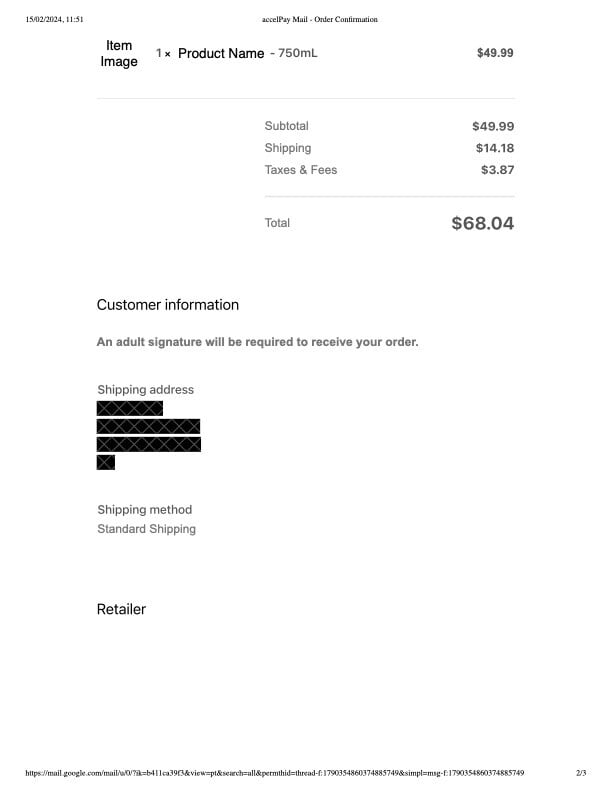
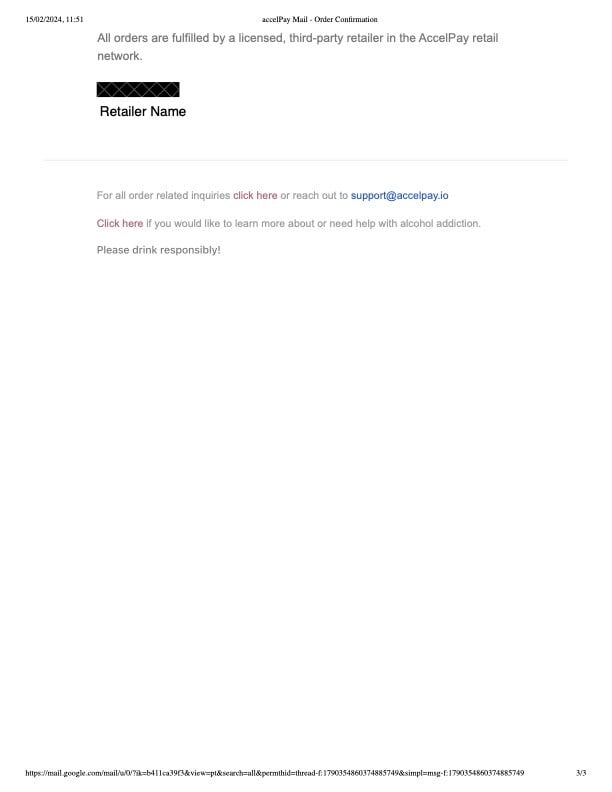
As you can see, the red box where it says "Thank you for your order" is the text content that you can customize within the Portal under
Receipt Email Note. The Logo is pulled from the Logo within your Settings, under General. To change the Logo, view this article.
The customer and order information are pulled from the order itself within the Portal under the Orders tab.